
Your Qalzy AI Scale weighs, scans and logs meals automatically. Here’s a quick guide to get you started.
Welcome to effortless calorie tracking.

Set up and Pair Qalzy
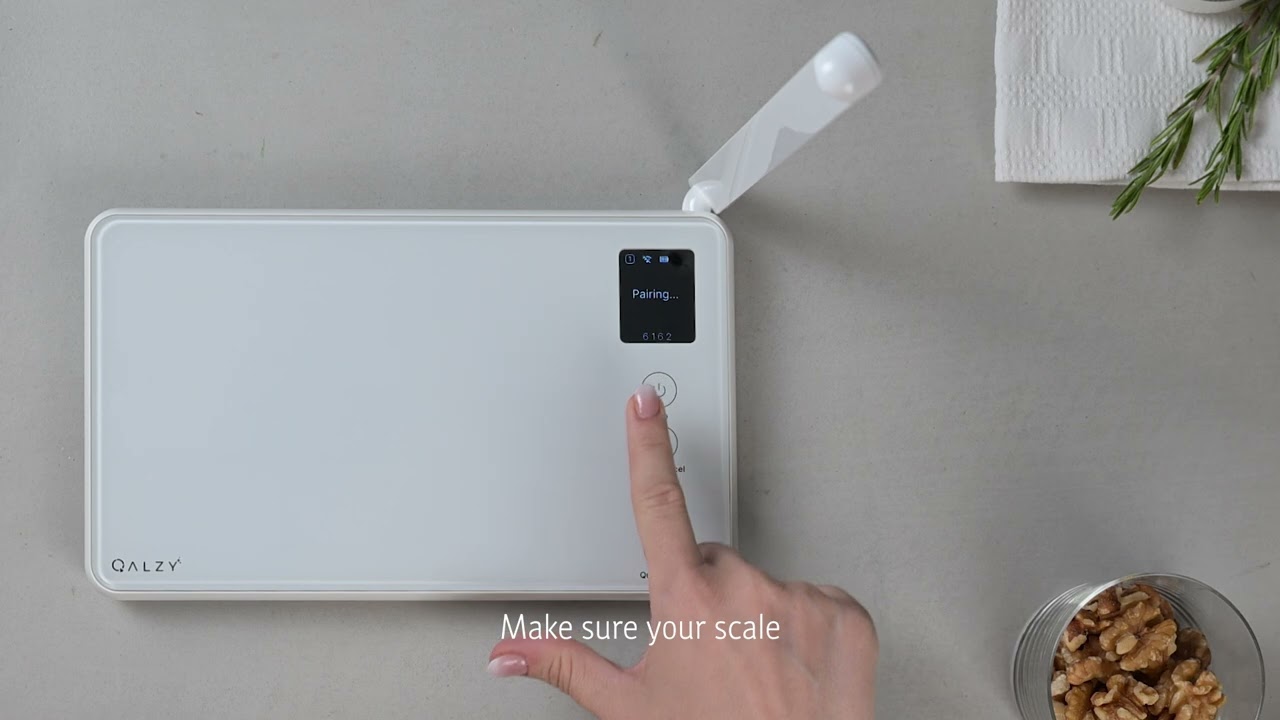
How to set up and pair your scale:
- Fully charge your Qalzy scale before first use.
- Press and hold the power button until the display lights up.
- Download the Qalzy app from the App Store (iOS) or Google Play (Android).
- Complete the onboarding, create your account, and tap to connect your scale.
- Enable Bluetooth permissions so your phone can find the scale. Make sure the scale is on and nearby.
- Choose your Wi-Fi network and enter your password to complete the connection.
- You're all set — your scale is connected and ready to go.
Need to reset and pair again?
- Turn the scale off by pressing the power button for 3 seconds.
- Press the power button again and repeatedly until you see the settings screen.
- Tap Reset to return the scale to pairing mode, then follow the pairing steps above.
Scan and Log Food (Quick Scan)

How to use Quick Scan:
- (Optional) Place a plate on the scale and press Tare to zero it out.
- Add your food to the plate.
- Press the Quick Scan button.
- Qalzy's AI identifies your food — you'll see an upload indicator, then a checkmark when it's logged.
- Open the Qalzy app and go to the Diary > From AI Scale tab to review your logged food.
- To add more ingredients to the same plate, add the next ingredient and press Quick Scan again. The scale auto-tares between ingredients.
- The scale remembers previous ingredients and their weight and will only identify new ingredients added to the plate. To clear its memory and start a new session press Zero.
- If the AI misidentifies a food, tap the ingredient in the app to correct it. Your correction is saved for next time.
 The camera might identify food ingredients visible around the scale. Make sure the area around the scale does not contain ingredients you don't want logged.
Scan an Entire Meal
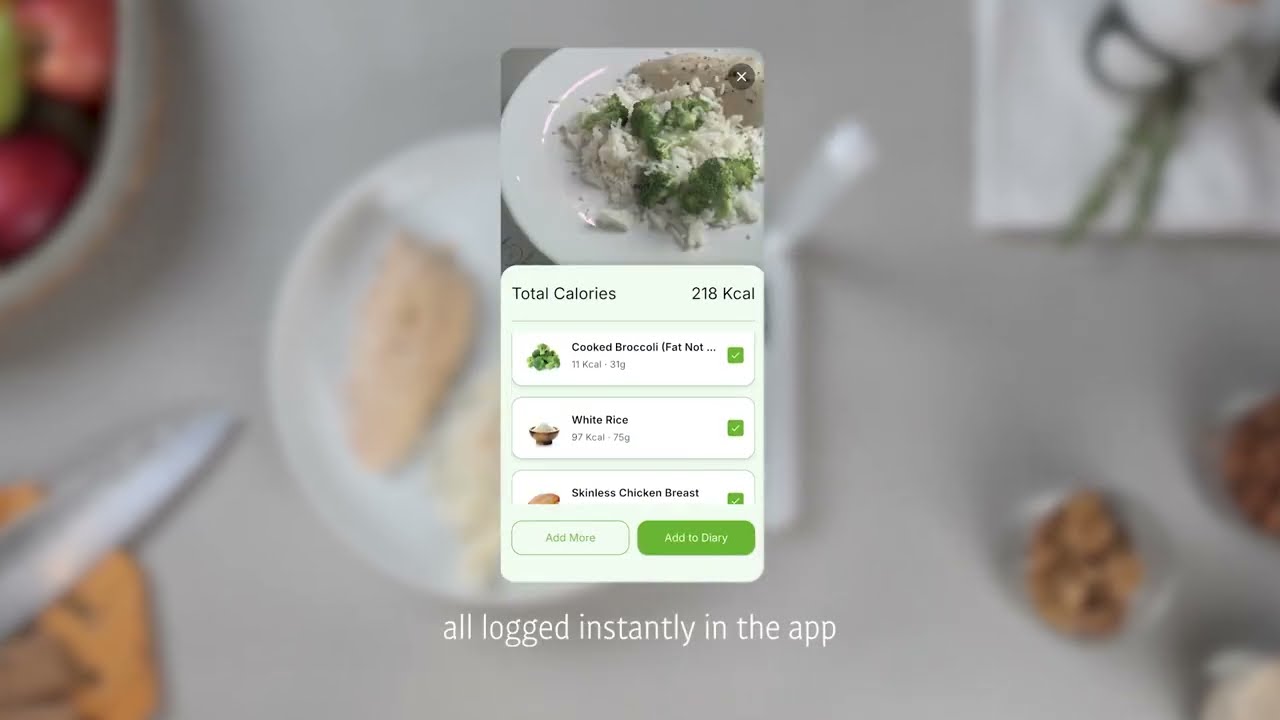
How to scan a complete meal:
- Place your plate on the scale and press Tare to zero it out.
- Add your full meal to the plate — include all ingredients you want to track.
- Press the Quick Scan button.
- Qalzy's AI identifies each ingredient on the plate, estimates its weight, and logs the calories and macros to your app.
- Open the Qalzy app and go to the Diary > From AI Scale tab to review and accept each logged ingredient.
See Calories Live (Live Scan)

How to use Live Scan:
- Place a bowl or plate on the scale and press Tare to zero it out.
- Add your first ingredient.
- Press the Live Scan button — Live Scan identifies the food and shows calories, protein, carbs, and fat on the scale's screen.
- Add more ingredients and watch the calorie totals update in real time on the display.
- When your meal is complete, press Live Scan again to log it to the app.
- To add more ingredients after logging, simply add them to the plate and repeat the process for each ingredient.
- The scale remembers previous ingredients and their weight and will only identify new ingredients added to the plate. To clear its memory and start a new session press Zero.
- If a food isn't recognised correctly, tap the cancel button on the scale and try again, or edit the entry in the Qalzy app after logging.
To cancel a live scan, press the cancel button on the scale.Packaged Food, Barcodes & Labels
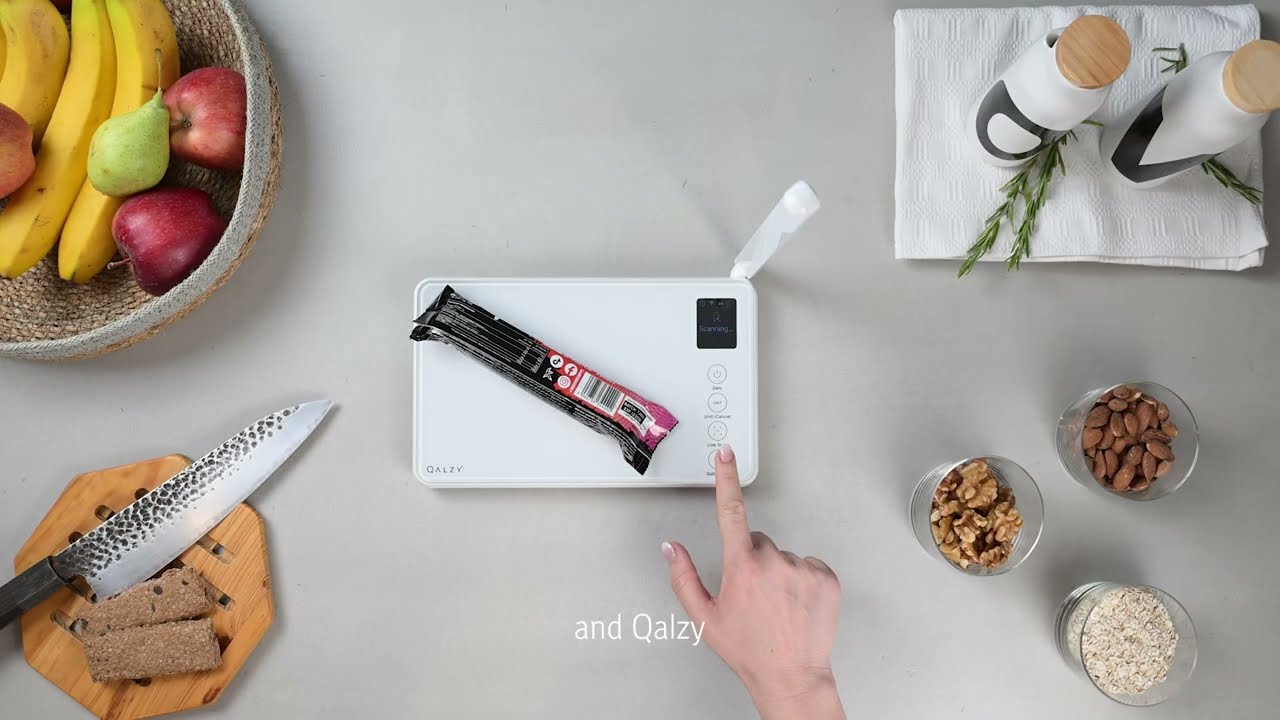
How to track packaged foods:
- Scan a barcode: Lay the product flat so the product touches the surface of the scale and the barcode is visible to the camera, or hold it at a 45° angle with the barcode pointing at the camera.
- Log the full product: With the packaged item on the scale, press Quick Scan to identify and log the entire product.
- Track a portion only: With the packaged item on the scale:
- Tap Live Scan.
- After identifying the product, place a plate on the scale.
- Press Tare.
- Scoop out the amount you need.
- Tap Live Scan again to weigh your portion.
- Scan a nutrition label: Hold the nutrition facts panel facing the camera and press Quick Scan or Live Scan.
- Review your logged food in the Qalzy app under Diary > From AI Scale.
Items should be touching the surface of the scale and kept still. The camera is calibrated to focus on the surface of the scale. Never place an item close to the camera.Create and Save Recipes

How to create and save a recipe:
- Scan each ingredient using Quick Scan or Live Scan as you prepare your meal.
- Add the next ingredients one at a time, pressing Quick Scan after each addition.
- Open the Qalzy app and go to the Diary > From AI Scale tab. Accept the ingredients you just scanned.
- Navigate to the Tracked Food section.
- Tap the "…" menu on your meal entry and select Create Recipe.
- Name your recipe and set the number of servings it makes.
- Save the recipe — it will now appear on the Recipes tab.
- Next time you make the same meal, log the entire recipe with a single tap.
Custom recipes make it easy to log home-cooked meals with improved accuracyMultiple People, One Scale
How to share your scale with multiple users:
- Enter pairing mode: Press the Power button to turn on the scale. IMMEDIATELY and repeatedly press the Tare button until you see the pairing screen. Select Pair New User.
- Pair a new user: The scale will display "Pairing".
- Start pairing in the app: In the Qalzy app, tap Settings > Qalzy Scale > Start Pairing Your Qalzy Scale and follow the on-screen instructions.
- Complete setup — the new user's profile number will appear in the top-left corner of the scale's screen.
- Switch between profiles: Long-press the Unit button (>3 seconds) until the User Selection menu appears. Press Live Scan to cycle through profiles, then press Tare to confirm.
- Identify the active profile: The profile number in the top-left corner confirms which account scans are being sent to.
- All logged foods sync to the correct Qalzy account automatically.
Your profile number is shown in the app under Settings > Qalzy Scale, along with whether it is currently Active.Resetting Your Qalzy Scale
There is a small reset hole on the right-hand side of the scale. Carefully insert a pin or a SIM-eject tool into the hole and press gently. This will reset the scale, after which you'll be able to turn it off normally.
Need Help?
We’re here for you! If you run into any issues, feel free to Contact Us.